

How to Prove Your Business Is Legitimate to Google
A real, verifiable business and evidence of how it operates are the foundation of how to prove business legitimacy to Google. If you serve customers at their locations, you can use your home address for verification and hide it from the public; if customers visit you, your profile should reflect the address where you actually meet them. A service-area profile can list up to 20 service areas, generally within a 2-hour driving time of your business base.
Verification is not just a paperwork check. Google may also look for genuine evidence that your business operates as described. Make sure your business details match across your website and Google Business Profile, and use photos or video of real locations, tools, equipment, or work, not staged or misleading evidence.
This guide explains how to choose the right business setup, meet address requirements, keep details consistent, and prepare genuine photos or video for verification. You’ll also learn what Google may request and how to make your evidence clear before you start.
Key Takeaways
- Choose a service-area or address-based profile based on where customers actually meet you, then select only the verification method Google makes available.
- Plan around the verification route: postcard, video, live call, or text can involve different steps and waiting periods.
- Match your real-world business name, address, and phone number across your profile, website, and other listings.
- Use a genuine physical business location for verification; a P.O. Box or virtual office won’t serve as the primary address.
- Prepare authentic photos or a continuous video that clearly shows your operations and your connection to the business.
Service Area Business Or Address-Based Business?
Choose your Google Business Profile setup based on where customers meet you. A service-area business visits customers and can hide its address. An address-based business serves customers at its listed location. Choosing the setup that reflects your operations is an important first step in how to prove business legitimacy to Google.
A service-area business can verify with its real operating address while hiding the street address publicly. A new business without a website or reviews can still support its profile with accurate details and genuine evidence of its operations.
- Decide how customers reach you before creating your profile. If customers visit your staffed location, use an address-based profile and display that location. If you travel to customers, choose a service-area setup and hide your address. For example, a plumber working at customers’ homes shouldn’t present a private home as a walk-in storefront. Set up the profile to reflect how you actually serve customers.
- Set service areas that reflect real operations. A Google Business Profile can list up to 20 service areas, generally within a 2-hour driving time of its business base. Choose places you genuinely serve, not distant cities added to appear broader. Keep the base address available for verification, even when customers don’t see it publicly.
- Start verification from your profile and use the method Google offers. Options may include a mailed postcard, video recording, live video call, or text-message code. Google determines which methods are available for each profile, and some businesses may need more than one. Prepare for the offered method rather than trying to switch it yourself.
- Make your business details consistent before submitting verification. Compare your profile with your website’s contact page and your Google Maps listing. Use your real-world business name, address, and phone number. For example, don’t use one name on your website and a keyword-filled version on your profile.
- Avoid changes that could complicate verification. If you’re waiting for a postcard code, don’t edit the business name, address, or category, because those changes can make the code unusable. Sudden or unusual edits may also prompt further review. Keep the listing accurate and avoid changing key details during verification.
- If Google denies verification or suspends your profile, compare its details with your actual operations first. Correct any mismatched names, addresses, categories, or service areas, then follow Google’s available support or appeal process. Make sure your evidence matches the profile. For a mobile service business, show a genuine operating base and real work, not a fabricated storefront.
Verification review timelines
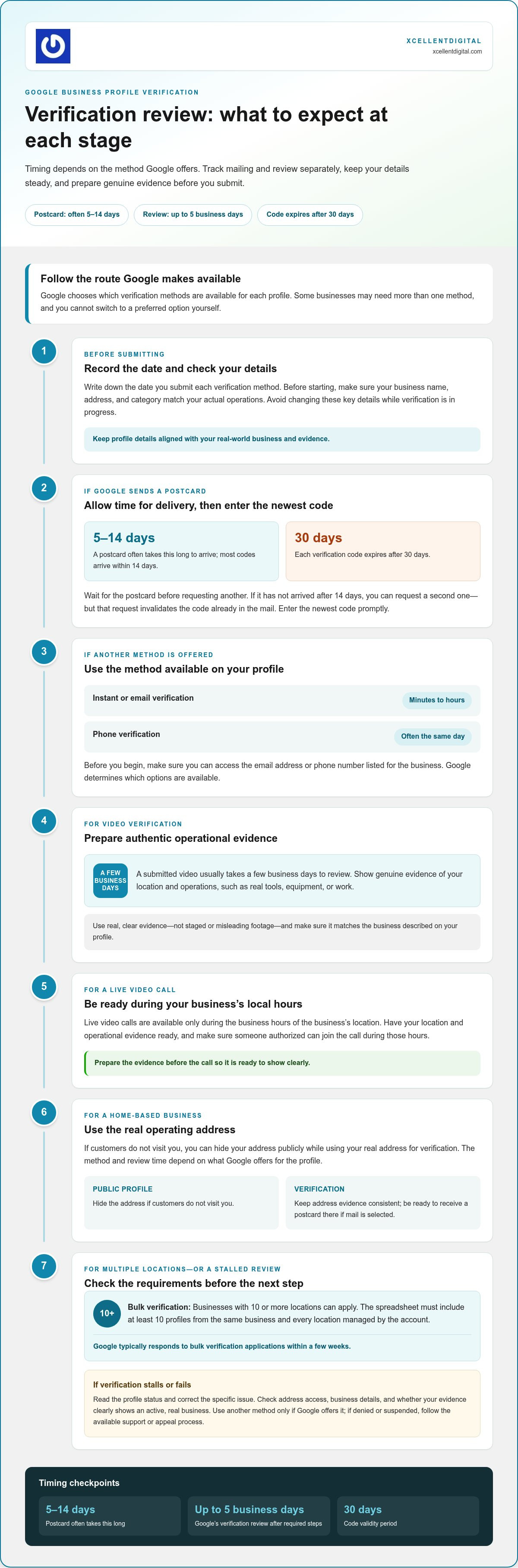
- Write down the date you submit each verification method. A postcard often takes 5-14 days to arrive, and most codes arrive within 14 days. After completing the required steps, Google says a verification review can take up to 5 business days. Track mailing and review time separately so you know which stage is taking longer.
- Wait for the postcard before requesting another one. If it hasn’t arrived after 14 days, you can request a second postcard, but that request invalidates the code already in the mail. Each code expires after 30 days. Enter the newest code promptly, and avoid editing your business name, address, or category while waiting.
- If Google offers a faster verification method for your profile, you can use it. Instant or email verification may take minutes to hours, while phone verification often takes the same day. Google chooses the available methods, so you can’t switch to a preferred option yourself. Before starting, make sure you can access the listed email or phone.
- Prepare before recording a verification video or scheduling a live call. A submitted video usually takes a few business days to review. Live video calls are available only during the business hours of the business’s location. Have your location and operational evidence ready, and make sure someone authorized can join the call during those hours.
- Verify a home-based business using its real operating address. You can hide the address publicly if customers don’t visit you. The verification method and review time depend on what Google offers for that profile. Keep address evidence consistent with the profile, and be ready to receive a postcard there if Google selects mail verification.
- Consider bulk verification if your business manages multiple offices. Businesses with 10 or more locations can apply, but the spreadsheet must include at least 10 profiles from the same business. Include every location managed by the account, since Google won’t accept a partial submission. Google typically responds to bulk verification applications within a few weeks.
- If verification stalls or fails, read the profile’s status and correct the specific issue before trying again. Check address access, business details, and whether your evidence clearly shows an active real business. Then use another method only if Google offers it. For a clearer Google Business Profile setup, align the listing details before re-verifying.
Consistent business name, address, and phone number
Create one reliable record of your business details, then compare it with your Google Business Profile, Google Maps listing, website, licenses, and official records. Keep the business name, address, and phone number consistent wherever they appear.
-
Match Business Details Across Records
Gather your Google Business Profile, license documents, and official business records. Compare names and addresses carefully, including spelling, suite details, and street format. Use your real-world business name on Google, not added keywords or a version created for search.
Check which contact details each document contains. Where a license or official record lists a phone number or address, align it with the profile. If a record uses a different business name, such as a registered name rather than the name customers know, make the relationship clear in your business materials. Don’t alter official records to match a profile typo.
-
Keep Online Business Information Consistent
Compare your website’s contact page with your Google Business Profile and Google Maps listing. Make the business name, address, and phone number consistent wherever they appear. Check the footer, location page, and contact page, not just the homepage. Conflicting details can make it harder for customers to recognize that they’ve found the same business.
Keep your other online records consistent, too. If you maintain social media profiles or directory listings, compare their contact details with your main business record. Avoid alternate spellings and outdated phone numbers. When services or contact details change, update your website and profile promptly, then review other listings so old information doesn’t linger.
-
Check Name, Address, and Phone Consistency
Create a simple NAP record: name, address, and phone number. Use those details from your current, accurate business record whenever you update a listing. Check the business name’s punctuation and spacing, the full street address, and every digit of the phone number. For example, don’t leave an old number on your website while Google Maps shows the new one.
Make one change at a time across your website and profile, then compare both records again. If the business moves or changes its phone number, update the places customers use to reach you. For a service-area business, keep the address details used for verification accurate even when the street address stays hidden publicly. Consistent records help people connect the listing to your actual operations.
Physical address requirements for service-area businesses
A service-area business still needs a real, verifiable physical location for its Google Business Profile. You can hide the street address from customers, but the verification address must reflect your actual business base.
-
Meet Physical Address Requirements
Use the physical address where your business operates, even if customers never visit. A home address can be the verification location for a service-area business, while remaining hidden from public view. Don’t use a P.O. Box or virtual office as the primary business address. Keep your documents and profile consistent with the location where your business is genuinely based.
-
Assess Virtual Office and Coworking Address Risks
Be cautious about using a virtual office or coworking address. Google doesn’t accept a virtual office as a primary business address, which can undermine verification. A coworking address can also cause problems if it serves only as a mailing address and doesn’t reflect your operations. Choose a location you can substantiate, access, and connect to your business records.
- Prepare location evidence that matches your listed address. Check whether the street sign, building exterior, and house or unit number make the location identifiable. Google Maps Street View may show the entrance or nearby signage, so avoid evidence that suggests a different location. For a home-based business, make sure your records match the actual property.
- Show how your service-area business operates beyond its base. Gather genuine photos of work equipment, tools, inventory, team members, or a branded service vehicle. For example, a mobile electrician could show job tools and a work vehicle bearing the business name. This evidence helps connect the listing to real operations, not just an address.
- Organize supporting documents before you begin verification. Use records that connect your business name to its physical base, and keep details consistent across them. A service-area map, field-worker roster, photos of past work, receipts, or client notes can add context about where and how you operate. Don’t include customer materials that expose unnecessary private information.
- Review your evidence as one consistent story before submitting it. Check that the address, business name, vehicle branding, and documents all point to the same operation. If customers don’t visit your home, hide its address publicly while keeping it available for verification. Keep the service area realistic and show only work you actually perform.
Authentic business photos and videos
Use current, genuine evidence to show Google that your business operates as described. A clear verification video can connect your location, tools, and management to one real business.
- Plan a continuous, unedited video before recording. Google may ask you to show the location, business tools, and proof that you manage the business. Map a simple route from the street to the work area, then include each requested item. Focus on your actual operations, not unrelated surroundings or staged scenes.
- Start outside if your verification requires location evidence. Show the street sign, building exterior, and house or unit number clearly. If you have business signage, include it with enough surrounding context to identify the entrance. For a home-based business, show the relevant exterior details without revealing more private information than verification requires.
- Show tools, equipment, inventory, or a branded truck that matches your services. Hold the camera steady on each critical item for 2-3 seconds, so details remain visible. For example, a cleaning business could show its working equipment and branded vehicle. Choose items used in actual jobs, not borrowed props that don’t represent your business.
- Show how the business is managed. Google may ask you to unlock a door, access business software, or show a business license bearing your name. Include the owner or an employee working or demonstrating the space. These actions help connect control of the location and tools to the person responsible for the business.
- Keep the video concise and within the recommended limits. Aim for 60-90 seconds, and don’t exceed 3 minutes. Record one continuous take; avoid edits, cuts, filters, or added graphics. Speak only when helpful, and make sure signage and evidence stay in frame long enough to be understood.
- Take fresh photos if Google requests supporting evidence for live video verification. Capture them during the same week, ideally the same day, and use a mobile phone for this supporting evidence. Before submitting, check that each photo is clear and relevant. Show the business presence Google can verify rather than relying on old or generic stock images.
- Review the entire recording before sending it. Confirm that location clues, equipment, and management evidence appear clearly and consistently. If your listed hours are 8:00 AM to 5:00 PM, be available to answer the phone or door during those hours. For help aligning visual evidence with your profile, get support optimizing your Google Business Profile.
XcellentDigital: Facebook Ads
XcellentDigital helps businesses build on a verified Google presence with practical digital marketing support. If your profile is accurate but customers still aren’t finding or contacting you, Google Business Profile Optimization can improve how your business appears in local search. Facebook Ads can put your offer in front of potential customers, while Search Optimization supports visibility in search results.
Choose a next step based on your priority: improve your profile, reach audiences through paid social, or build search visibility. Your online presence works best when your business details and customer journey are aligned.
Contact XcellentDigital to discuss the right next step for your business.
Turn verification into lasting visibility
Verification is a foundation, not the finish line. Understanding how to prove business legitimacy to Google gives you a starting point; consistent, useful information keeps your presence relevant afterward. Help potential customers understand what you do, recognize your business, and know how to take the next step.
If managing your online presence is taking time away from running your business, XcellentDigital can help with Google Business Profile Optimization. Facebook Ads can support outreach to potential customers, while AI Agents can streamline lead response. Keep applying what you’ve learned about how to prove business legitimacy to Google as your business and customer journey evolve.
Take the next step when you’re ready: contact XcellentDigital to discuss your business goals. Build from a profile that reflects the real business behind it, and keep moving forward with confidence.
Frequently Asked Questions
What Can Trigger Re-Verification?
Unusual profile changes can prompt Google to review a Business Profile again. A sudden change to the business name, address, or category may raise questions, especially if other business records show different details. Google may also check whether the business operates as listed, including by phone or by comparing customer interactions with stated hours. Keep profile changes accurate and supported by current records.
What Does Verification Actually Mean?
Verification confirms that you can manage the Google Business Profile; it doesn’t certify every claim about your business. Treat verification as confirmation of control over the listing, not a substitute for accurate details or genuine operations. A verified profile still needs to reflect your real business name, customer access, and contact information. Keep these details current so the listing represents your business correctly.
Why Does This Matter?
Verification lets you manage the profile customers find on Google Search and Maps. That control matters when a phone number changes, a holiday affects opening hours, or customers need updated information. Google’s Local Three-Pack contains three map results, but verification doesn’t guarantee a particular placement. First, make the profile useful and accurate for people deciding whether to contact your business.
What documents prove a business is legitimate to Google?
Use evidence that connects your business name, location, and operations. Examples include a business license bearing the owner’s name, receipts, client notes, photos of completed work, or a service-area map. The right evidence depends on Google’s request. Keep documents consistent with the profile and avoid materials showing a different business name or address. A useful evidence set tells one clear story about the same operating business.
How do you verify a Google Business Profile in the United States?
Open your profile and follow the verification method Google offers. Options may include a postcard, video recording, live video call, or text-message code; Google selects the methods available for each profile. For a postcard, make sure the address can receive mail and enter the code from the card. Avoid changing key profile details while you wait, as edits can make the mailed code unusable.
What are Google’s video verification requirements for businesses?
Record a continuous, unedited video that connects the business location, its work, and your management of it. Show relevant evidence such as the entrance, tools, inventory, or access to business software. Plan your route before recording so the footage is clear and complete. Follow Google’s stated video limit and make each item easy to see. Show actual business activity, not staged or borrowed proof.
How do you appeal a suspended Google Business Profile and prove the business is legitimate?
Review the suspension notice, correct any profile details that don’t reflect your real operations, and prepare evidence before submitting an appeal. Gather records supporting the business name and location, along with relevant proof of work, such as receipts or client notes. Keep the appeal focused: explain what you corrected and connect each document to the profile. If the process becomes difficult, XcellentDigital offers GBP Reinstatement.
What are Google’s rules for business names, addresses, and service areas?
Use the business’s real-world name, not added keywords or promotional phrases. A profile needs a verifiable physical business location; a P.O. Box or virtual office can’t serve as its primary address. Service-area businesses can hide their address publicly and list up to 20 service areas, generally within a 2-hour driving time of their base. Show only areas the business genuinely serves, and keep profile details accurate.













Leave a Reply
Want to join the discussion?Feel free to contribute!