

How to Check Whether Your Reviews Will Return After Reinstatement
A reinstatement decision and the return of your reviews are two separate waits. A Google Business Profile request can take anywhere from a few days to several weeks, and reviews may take 24 to 72 hours to reappear after reinstatement. If you’re wondering why your GBP is taking so long to be reinstated, the delay may come down to the appeal review and the evidence submitted.
Waiting can leave you unsure whether your profile is progressing or whether its reviews will return. Separate the appeal’s status from the time it takes for reviews to reappear.
This guide explains what can affect reinstatement timing, how to check your appeal status, and which documents can support your request. You’ll also learn what to check after your profile returns, so you can decide what to do next.
Key Takeaways
- After a denial, strengthen your case with evidence that wasn’t included in the original appeal before requesting another review.
- Keep your appeal focused: address guideline issues, use your real business name, and avoid creating a duplicate profile.
- Gather clear documents that connect your business identity and location to the profile you’re appealing.
- Track the appeal in Google’s appeals tool and check the decision email for updates or requests for more information.
- Once reinstated, allow time for reviews to return and distinguish a review display delay from an unresolved appeal.
My profile was offline for months, will my reviews still be there after reinstatement?
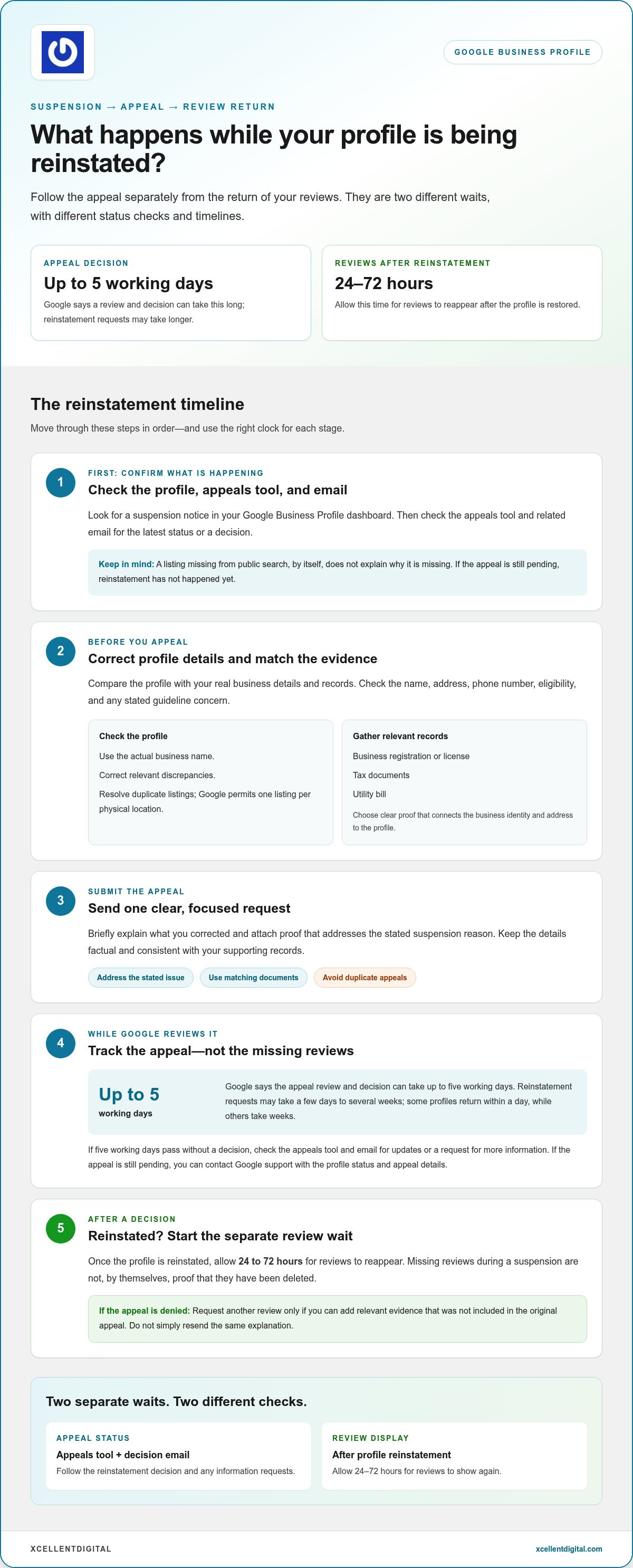
Reviews may reappear after Google reinstates your profile, but they can take 24 to 72 hours to show. That review display delay is separate from the appeal decision, which Google says can take up to five working days.
If you’re asking why your GBP is taking so long to be reinstated, check the appeal status separately from the review display. These steps can help you understand what’s happening and what to do next.
- Check the appeal status and decision email. Google sends appeal decisions by email after reviewing an appeal. If the status is pending, the review restoration window has not started because reinstatement has not happened yet. Avoid treating missing reviews during a suspension as proof they’ve been deleted. For example, note whether the profile itself is reinstated before counting the 24 to 72 hours for reviews to reappear.
- Allow the review decision window to pass. Google says the review and decision can take up to five working days. If that period passes without a decision, check the appeals tool and your email for updates or a request for more information. You can contact Google support if the review window has passed and the appeal is still pending. Keep your message factual, including the profile status and appeal details, rather than resending the same request.
- Match the suspension reason to the evidence. A suspension may involve an eligibility or guideline concern, such as a business name or address that doesn’t match its records. A business license may support eligibility if its details match the profile. Review the stated reason, correct any guideline issue, and keep your evidence consistent. The suspension reason can affect the appeal decision, but it doesn’t determine whether reviews will return.
- Request another review only after denial. Google may allow an additional review after it denies a reinstatement request, if you can provide evidence that wasn’t included in the original appeal. Don’t simply resubmit the same explanation. Add relevant new proof, such as a matching license if it addresses the stated reason, and clearly explain what the document demonstrates. After reinstatement, allow 24 to 72 hours for reviews to reappear before deciding that restoration needs further attention.
How Long Does It Take to Reinstate a Google Business Profile?
Google says an appeal review and decision can take up to five working days, though some cases take longer. Check your profile’s status first, then correct policy issues before appealing.
Identify the Profile’s Status
Open your Google Business Profile dashboard and look for a suspension notice. Google typically sends the notice in the dashboard, but it may not identify the exact cause. Check the appeals tool and related email for the latest decision status. A suspension notice means the profile is restricted; a listing that is missing from public search, by itself, doesn’t explain why.
Check Eligibility and Policy Violations
Before appealing, compare your real business details with Google Business Profile guidelines. Confirm that the business is eligible and the profile reflects its actual name, location, and operations. A duplicate listing or inaccurate business name can raise policy concerns. Correct relevant issues first, then prepare evidence that addresses the stated reason for suspension.
- Correct the profile before appealing. Compare the business name and address on your Google Business Profile with your supporting records. Check the phone number and other details for discrepancies, and use the actual business name. Remove or resolve duplicate listings; Google Business Profile permits one listing per physical location. A second profile for the same business can complicate the appeal and won’t replace the original.
- Submit one clear appeal. Explain what you corrected and attach relevant proof, such as a business license that matches the profile details. Keep the explanation short and factual. Google’s review and decision can take up to five working days, though reinstatement requests may take a few days to several weeks. Some profiles return within a day, while others take weeks.
- Don’t create another profile or send duplicate appeals. A new listing for the same business can add confusion while Google reviews the original. Don’t submit another appeal while the first is under review. Check the appeals tool and email for a decision or request for more information. If the profile remains suspended, use the decision and stated reason to guide your next step.
Once the profile is restored, Google Business Profile Optimization can help keep its information consistent and accurate.
Evidence to support a reinstatement appeal
Build your evidence around the issue identified in Google’s suspension notice. Clear, relevant documents can connect your business identity and address to the profile under appeal.
- Match each document to the profile. Gather records showing the same business name and address as the suspended Google Business Profile. Useful evidence may include business registration, a business license, tax documents, or a utility bill. If your profile shows a different address from your current records, explain the difference and include documents that clarify it. Avoid unrelated files that leave Google guessing.
- Prepare the files before opening the evidence form. Collect and review your documents first, then submit the clearest proof that addresses the stated reason. Some appeals historically used a separate upload form with a 60-minute window. As of July 2026, Google had begun moving evidence uploads directly into the appeal form for many accounts. Follow the upload steps shown for your appeal.
- Keep the pending appeal focused. Write a short, factual explanation of the policy issue you corrected and identify the document that supports your explanation. For example, explain how a matching business license verifies the name on your profile. Check the appeal status and email for requests from Google. Avoid duplicate appeals, repeated submissions, or emotional complaints while the original request is pending.
- Separate a Google account restriction from a profile suspension. Resolving a restriction on your Google account does not automatically reinstate an associated Business Profile. Once the account restriction is lifted, submit a separate appeal for the suspended profile. Keep the evidence specific to each issue, and don’t assume one decision covers both your Google account and business listing.
- Respond to a denial with stronger evidence. Don’t resubmit the same appeal after Google denies it. Review the decision, identify the reason that remains unresolved, and add relevant evidence that wasn’t in your original submission. Google may allow an additional review after denial when you provide new evidence. For example, if your first appeal lacked proof of address, include a matching utility bill or lease agreement with your additional review request.
Documents that support a reinstatement request
Choose documents that directly address the reason Google suspended your Business Profile. A business license, utility bill, lease agreement, or government-issued ID may support a reinstatement request. Use these steps to organize relevant proof and make each document’s connection clear.
- Match the business name and address. Compare each document with the name and address on the profile you’re appealing. For example, if your profile uses a shortened business name, include records that connect it to the name on your license. Google needs evidence relevant to the specific profile, not paperwork for another location. Explain differences between the records and profile details instead of leaving reviewers to infer the connection.
- Select documents that address the stated issue. If the concern involves your operating location, choose a utility bill or lease agreement showing the matching address. If the issue involves business identity, a business license or government-issued ID may help establish the connection. Don’t submit a stack of unrelated files. A focused set gives each document a clear role in supporting your reinstatement request.
- Check every file before you submit it. Confirm that the business name and address are readable and correspond to the profile under appeal. Check for missing pages, cut-off details, or an unrelated address. If a license shows a registered name that differs from your public business name, add a concise explanation connecting the two. Clear records are easier to assess.
- Use documents, not marketing material, as proof. A website, advertisement, or social media post may describe your business, but it doesn’t replace a license, utility bill, lease agreement, or government-issued ID. Keep promotional content separate from evidence of identity or address. Answer Google’s stated concern with records that support the profile’s accuracy and eligibility.
- Respond to a denial with relevant new proof. Read the decision and identify the issue that remains unresolved. If Google denies your request, don’t resend the same documents without addressing that reason. For example, add a lease agreement if your earlier appeal lacked address evidence. Don’t remove the original profile or create a duplicate while resolving the appeal. Restoring visibility can support local marketing, but it doesn’t replace accurate records or determine whether Google reviews will return.
How can I check the status of my Google Business Profile reinstatement request?
Use Google’s appeals tool to check the profile you submitted, then compare its status with Google’s email updates.
- Open the appeals tool with the relevant Google account. Find the Business Profile reinstatement appeal and identify the specific listing you submitted. Compare its business name and location with the suspended profile. This helps prevent confusion between the original listing and another profile you manage. Keep the appeal details together so you can compare updates accurately.
- Check the status for the selected profile. If you manage multiple Business Profiles, select the one whose appeal you want to review. The appeals tool displays the status for the selected profile only. A status for one listing doesn’t establish the status of your other appeals. Check each suspended location separately instead of relying on one profile’s update.
- Compare the tool with your email. Google emails appeal decisions after reviewing an appeal and may request more information. Find the message about the same business profile and compare its decision with the tool’s status. If Google requests evidence, note exactly what it asks for and respond through the appeal process. Don’t mistake an email about one location for a decision on another.
- Record each update in one place. Note the profile name, appeal submission details, displayed status, and any Google email. For multiple locations, keep a separate record for each profile. This makes it easier to identify which appeal is pending and whether a message relates to the correct listing. Save submitted evidence with its matching record so you can refer to the same documents if Google asks for clarification.
- Handle bulk appeals profile by profile. For bulk appeals, Google sends an appeal decision email only for the profile selected in the appeals tool. Check the selected profile and its email before assuming the full group has received a decision. If you manage several suspended locations, check the status of each relevant listing and track the results individually. One decision email doesn’t confirm the outcome for every profile in a bulk appeal.
- Use the displayed status to choose your next move. If the appeal is pending, watch for a status change or an email requesting more information. If Google sends a decision, compare it with the profile and evidence involved. For a denial, don’t assume the email is a decision on another listing. Identify the profile named in the message, then follow the next step for that appeal.
XcellentDigital: Google Business Profile Optimization
XcellentDigital helps businesses manage and improve their Google Business Profile through Google Business Profile Optimization. After reinstatement, this service can help keep profile information aligned with your actual business details and maintain a clear, consistent presence. Accurate details also help customers identify your business when they find it on Google.
If your next challenge is building visibility beyond your profile, XcellentDigital also offers Search Optimization and Pay Per Click. AI Agents can support customer interactions as part of your broader digital marketing efforts. Choose support that fits your needs, whether you’re refining your profile or strengthening how customers find and engage with your business. Contact XcellentDigital to discuss your next step.
Build a Steadier Path Forward
A suspended profile can disrupt more than visibility. It can interrupt how customers find your business, read feedback, and decide whether to reach out. Treat reinstatement as a prompt to build a steadier process: keep business information consistent, document important profile changes, and assign someone to monitor updates. A clear record will make future decisions easier than trying to reconstruct what happened in a rush.
If you’re still asking why your GBP is taking so long to be reinstated, focus on what you can control next: keep your appeal organized and profile details aligned with your business records. Once the profile is active, include review monitoring in your regular customer follow-up so new feedback doesn’t go unnoticed.
XcellentDigital offers Google Business Profile Optimization to support businesses working to strengthen their profile presence. Contact XcellentDigital for GBP support and discuss the next step for your business. Move forward with a clearer process and a stronger foundation for being found.
Frequently Asked Questions
Can a GBP Be Reinstated in Just a Few Days?
Yes, some Google Business Profiles have been reinstated within a day, while other cases take weeks. A quicker outcome may be more likely when the issue is clear and the appeal addresses it with relevant evidence. For example, correcting an inaccurate business detail before appealing can make your case more complete. A fast result is possible, but it isn’t the expected timeline for every suspended profile.
How Long Does GBP Reinstatement Usually Take in 2026?
In 2026, Google says an appeal review and decision can take up to five working days, while full reinstatement may take a few days to several weeks. Those are different milestones: a decision is not the same as the profile becoming visible again. If your appeal is still pending, check the status for the specific profile and watch for messages requesting further information.
How Long Should You Expect GBP Reinstatement to Take?
Plan for a process that may take a few days to several weeks rather than assuming a fixed completion date. The appeal decision itself can take up to five working days, but additional review or unresolved profile issues can extend the overall wait. Keep a record of your submission and Google’s messages. This makes it easier to see whether the next step is yours or Google’s.
How long does the process take to resolve?
The timeline depends partly on the type of restriction. A soft Google Business Profile restriction typically takes 5-14 days to resolve, while a hard restriction typically takes 5-21 or more days. These ranges describe typical resolution periods, not a guaranteed deadline. If the profile remains restricted, use the stated reason to identify unresolved issues instead of starting another listing or sending an identical appeal.
What Affects GBP Reinstatement Time?
The suspension reason, evidence submitted, and profile circumstances can all affect timing. Appeals involving high-risk industries, including locksmiths, legal services, and home services, can take two weeks or more. A mismatch between the profile and supporting records can also leave the issue unclear. Check that each document supports the relevant business identity or address instead of adding unrelated files.
What Can Make GBP Reinstatement Faster?
Make your appeal easy to assess: correct guideline violations first, prepare relevant records, and explain the issue in concise, factual language. For example, if the concern is your business address, submit clear documentation connecting it to the profile. Use the actual business name and resolve duplicate listings before appealing. These steps address common sources of confusion, but they don’t control Google’s review queue.
What Can Make GBP Reinstatement Take Longer?
Unresolved guideline issues, weak or inconsistent evidence, and duplicate appeals can complicate the process. A profile in a high-risk industry may also take two weeks or more to review. For example, a utility bill showing a different address without explanation may not resolve a location concern. Avoid resubmitting the same appeal; use any decision or request for information to identify what needs attention.
How long does Google Business Profile reinstatement usually take?
Google Business Profile reinstatement can take a few days to several weeks. Google says the appeal review and decision can take up to five working days, but the full process may take longer. Use the appeals tool to distinguish a pending review from a decision, and make sure you’re viewing the correct profile if you manage multiple listings. A decision email may apply only to the profile selected in the tool.













Leave a Reply
Want to join the discussion?Feel free to contribute!